Getting started
Overview
Scan2View puts a QR code on every Revit sheet. On paper, scanning it opens your model in the browser. In a PDF, clicking it does the same.
You paste one link into the project. Scan2View places the QR code on each sheet, inside a box you draw once in the title block. When the link changes, every QR code updates by itself.
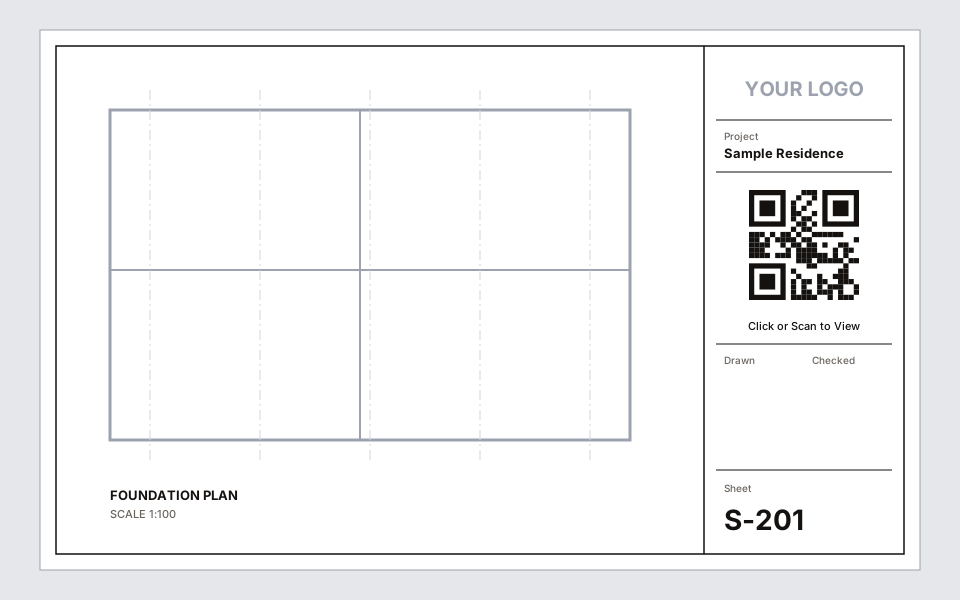
- 1The QR code sits in the title block, in the box you marked. It opens your Shared Views link on any phone.
How it works
1
Share
Copy a link from Autodesk Shared Views, or any web link.
2
Paste
Paste it once into the QR Link parameter.
3
Done
Every sheet gets a QR code, and they stay up to date.
What you get
- QR codes on every sheet, placed in a box you draw once in the title block
- Automatic updates when the link, the sheets or the title block change
- One link for the project, with an override or
noneper sheet - Your colours, five dot styles, rounded or leaf eyes, and your logo in the centre
- PDF export where clicking the QR code opens the link
- QR images saved inside the model, so colleagues without Scan2View still see them
Requirements
| Revit | 2022, 2023, 2024, 2025 or 2026 |
|---|---|
| Windows | Windows 10 or 11, 64-bit |
| Rights | No administrator rights needed. Installs for your Windows user only. |
| Price | Free, for personal and commercial work |
| Privacy | No account, no telemetry. Scan2View never connects to the internet by itself. |
Something unclear? Tell us.