Set up
The QR Link
Every QR code encodes one web link. You set it once for the whole project, and you can override it on any sheet.
Get a Shared Views link
Autodesk Shared Views lets anyone open a view of your model in a web browser, without Revit. It is the most common link to use.
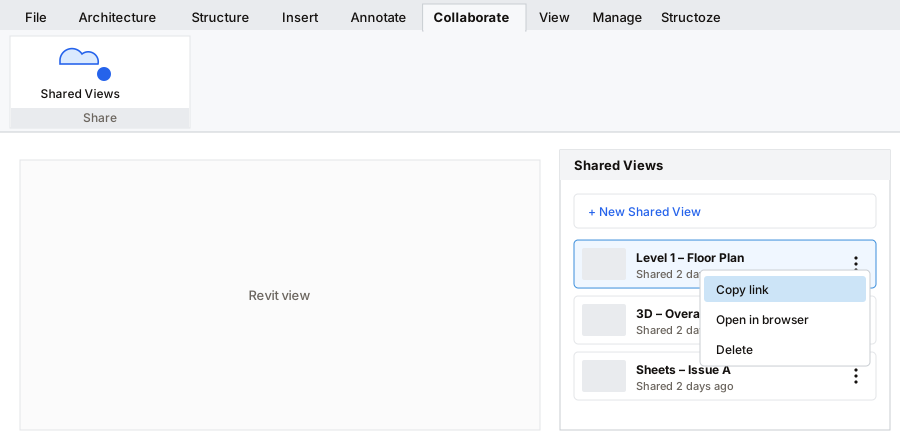
- 1Collaborate›Shared Views. Sign in with your Autodesk account if asked, then share a view.
- 2Open the shared view's ⋯ menu and click Copy link.
The QR Link parameter
Clicking Settings once adds a shared parameter called QR Link to Sheets and Project Information, in the Identity Data group. It is a URL parameter with a fixed ID, so schedules and other projects recognise it.
Set the link for the whole project
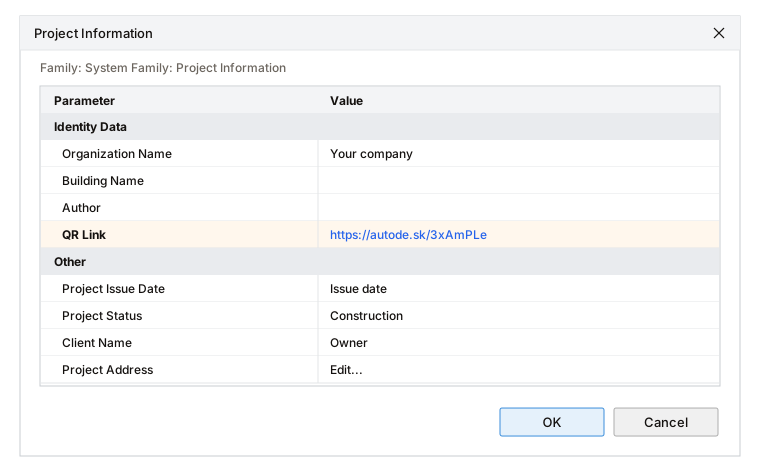
- 1Manage›Project Information › QR Link. Paste your link and click OK. Every sheet uses it.
Override it on one sheet
Select a sheet in the Project Browser. In Properties, its own QR Link decides what that sheet shows:
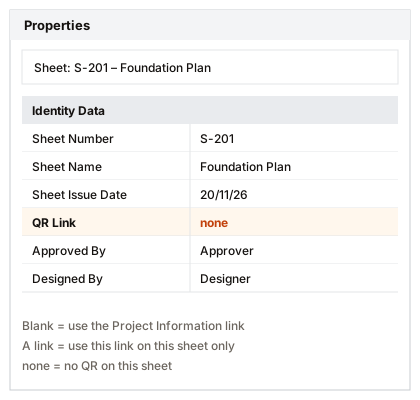
- 1Type none to hide the QR code on this sheet.
| Blank | Uses the Project Information link |
|---|---|
| A link | Uses this link on this sheet only |
none | No QR code on this sheet |
Changing a link updates the affected QR codes automatically. See Updating QR codes.
Something unclear? Tell us.