Set up
Look & style
Make the QR code match your drawings. Your choice is saved in the model, so everyone on the project gets the same look.
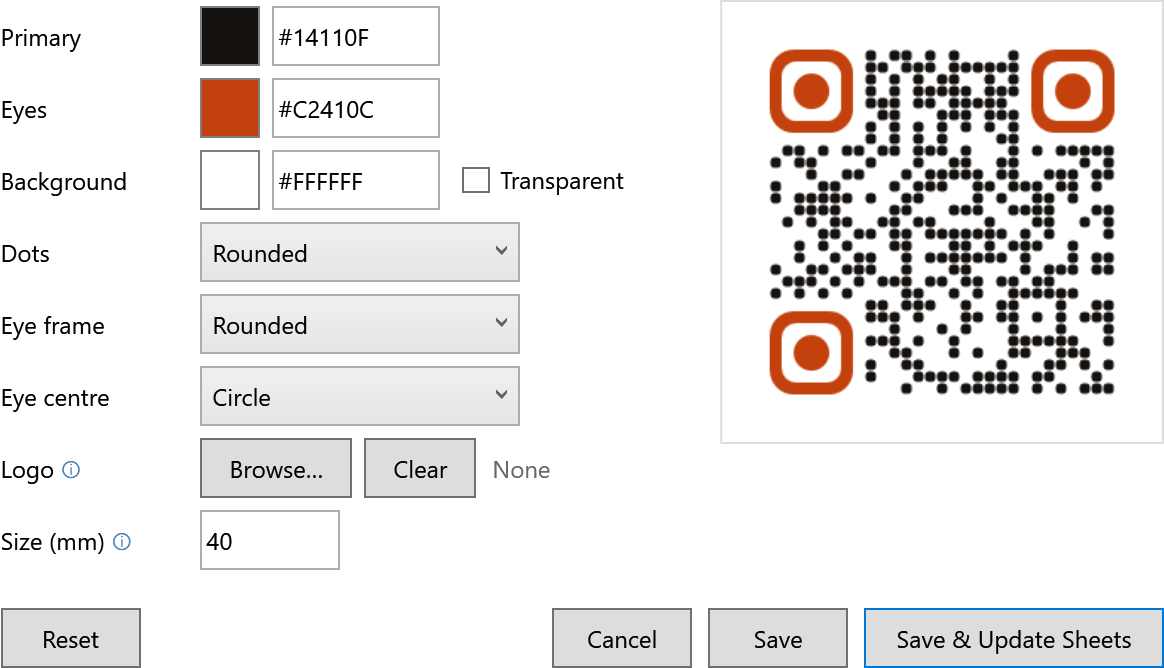
- 1Colours. Primary for the dots, Eyes for the three corner squares, and Background. Click a swatch or type a hex code. Transparent drops the background.
- 2Shapes. Dots: Square, Rounded, Dots, Classy or Fluid. Eye frame and Eye centre: Square, Rounded, Circle or Leaf.
- 3Logo. A PNG, JPG or BMP placed in the centre. Error correction switches to High automatically so the code still scans.
- 4Size. Width of new QR codes in mm. A placeholder box or a QR Size parameter in the title block overrides it.
- 5Live preview. A warning appears underneath if the contrast is too low to scan.
- 6Save & Update Sheets applies the look to every QR now. Save only stores it. Reset goes back to plain black and white.
Dot styles
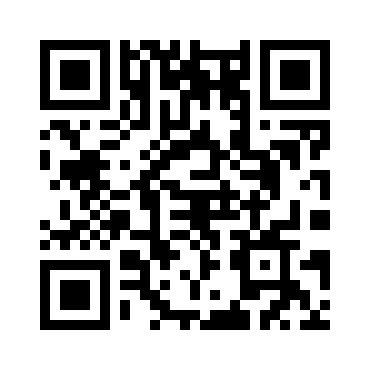
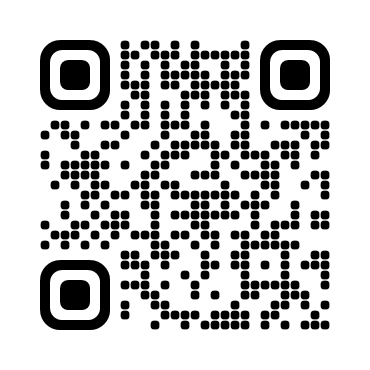
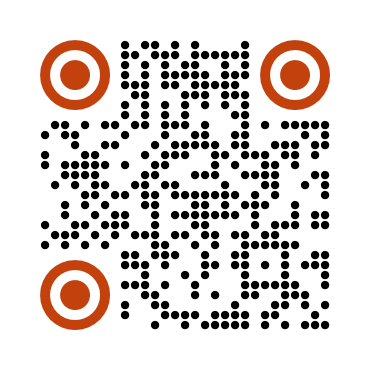
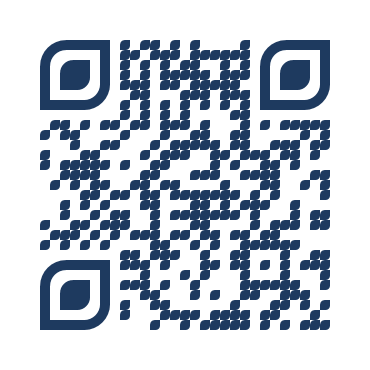
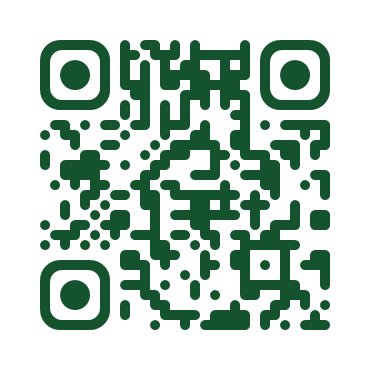
Every style is tested to decode with a standard QR reader.
Keep it scannable
- Dark dots on a light background. Light-on-dark codes don't scan on every phone.
- Leave a light margin around the code. Don't let title block lines touch it.
- Print at 25 mm or larger. 40 mm is a safe default for A3 and A1.
- Keep a logo small and simple. Test with two or three phones before issuing.
Something unclear? Tell us.